
Set up your first Capsule with confidence.
A practical walkthrough for choosing the right Capsule type, preparing your content, selecting recipients, and setting delivery conditions. The few things that cannot be changed later are called out at the exact step where they matter.
A capsule waits quietly until you stop checking in.
You store something that matters and choose who should receive it. As long as you keep confirming you're around, nothing happens. If you go silent past your grace period, Capsulene delivers it — exactly as you set it up.
You check in
Tap I'm alive on your schedule — or just click the link in the reminder email.
If you go silent
We try to reach you, then wait out the grace period you chose. Nothing is rushed.
It's delivered
Your capsule unlocks for the recipient you named — by email, SMS or WhatsApp.
Choose the right Capsule type
This single choice decides how protected your content is. Choose deliberately.
Text capsule
A message, instructions, or a pointer to where things live. Encrypted in transit and at rest — but readable by us so we can deliver it. Great for the "what to do" context around your affairs.
Use for: letters, runbooks, account locations, "call my lawyer Diane at…", a goodbye note.
Key holder Zero-knowledge
For real secrets. Encrypted on your device and split into shares — CAPSULENE holds one of three shares plus the ciphertext, so stored server data alone cannot decrypt it. The deep dive below explains exactly how.
Use for: passwords, crypto seed phrases, private keys, recovery codes.
Never put passwords, seed phrases, or private keys in a Text capsule. Text capsules are protected, but not zero-knowledge — use a Key holder for anything that grants access to money or accounts.
Create a capsule
From your dashboard, click Add new. The guided wizard walks you through it — a Text capsule takes three steps, a Key holder takes four. Here's each one, with the choices that matter.
Payload — what you're storing
Give the capsule a title (just for you, up to 64 characters) and choose Text or Key holder. Then add the content. Text capsules get a rich-text editor (toggle to plain text any time); key holders get a plain box for your secret.
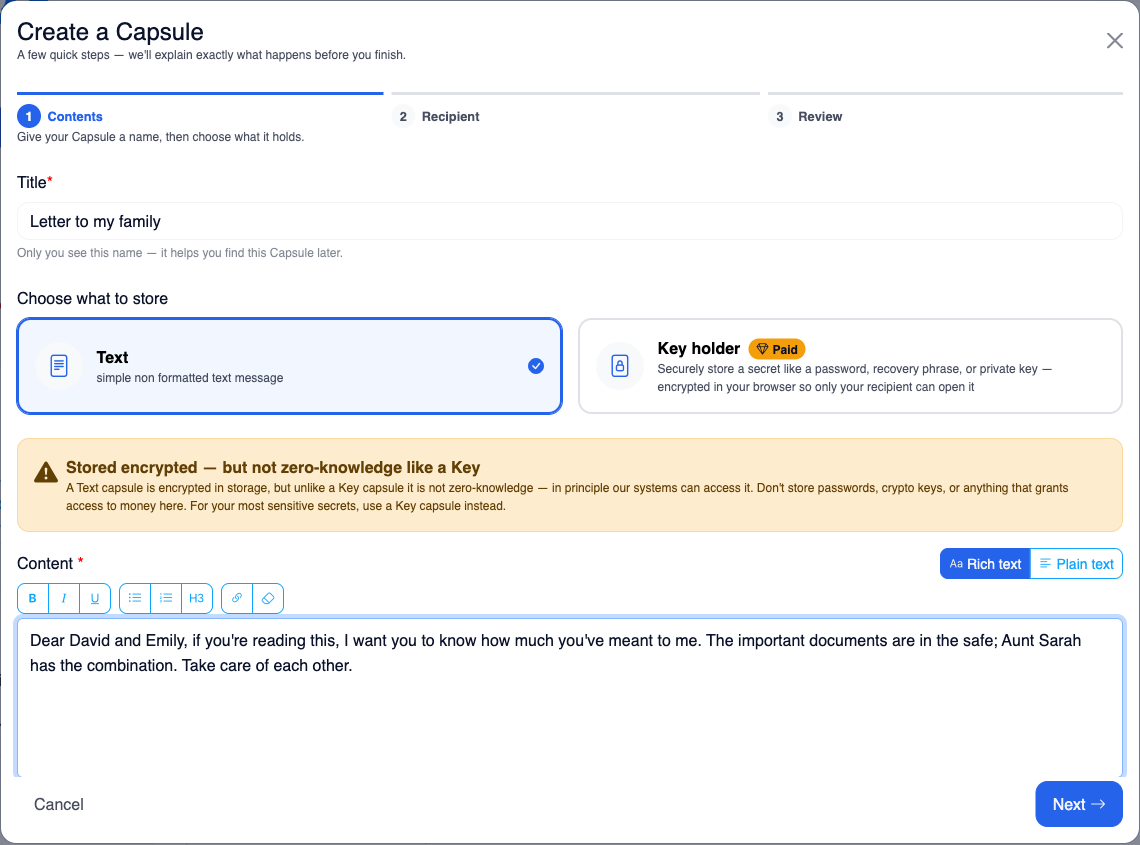
- aTitle is private. It's only ever shown to you in your dashboard — never to the recipient.
- bSize limit. Content is capped at 32 KiB. A live counter shows how much you've used.
- cKey holder content cannot be edited after saving (see Edit & restrictions) — check the secret carefully before you continue.
Recipient — who receives it
Name the person and pick how they'll be reached: email, SMS, WhatsApp, or any combination (each address entered twice to catch typos; at least one is required). You can also add two optional touches that help an unexpected message land — a sender name they'll recognise you by, and a short personal greeting.
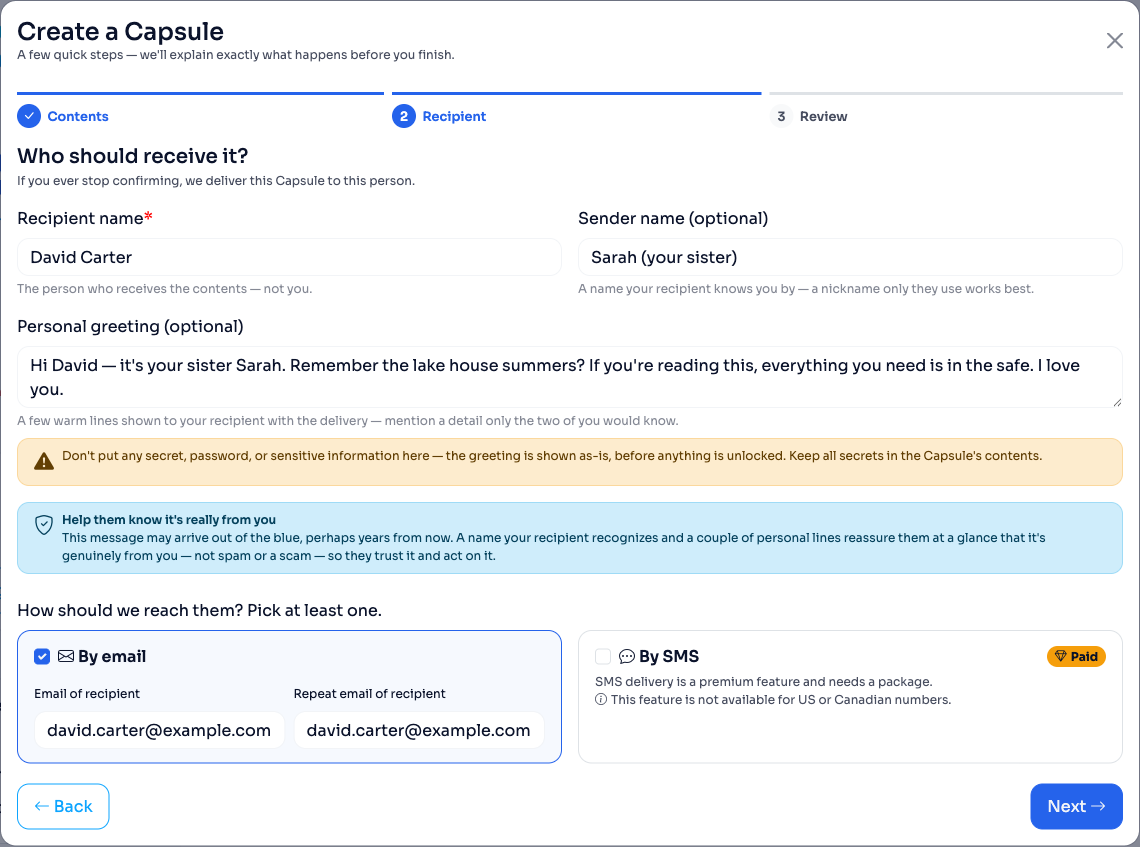
- aSender name & greeting build trust. A release can arrive out of the blue, even years later — a name they know you by (a nickname works) and a couple of personal lines reassure them it's genuinely from you, not spam.
- bNever put secrets in the greeting. It's shown as-is, before anything is unlocked. Keep passwords, keys and anything sensitive in the capsule's contents.
- cPick a durable address. A personal email outlasts a work one; the recipient isn't notified now, only if the capsule is ever released.
- dSMS and WhatsApp delivery are plan features (see the note on limits below) — a plan that includes them covers it. Email-only delivery is available on every tier. WhatsApp also reaches recipients in the US and Canada, where SMS delivery isn't available.
Review & customize — the timing
The review step shows a plain-language timeline of what will happen. Defaults are sensible (monthly check-in, 3-day grace, retry up to 3 times, email). Click Customize to change the cadence, grace period, retry behaviour, or to add your own SMS or WhatsApp check-in channel.
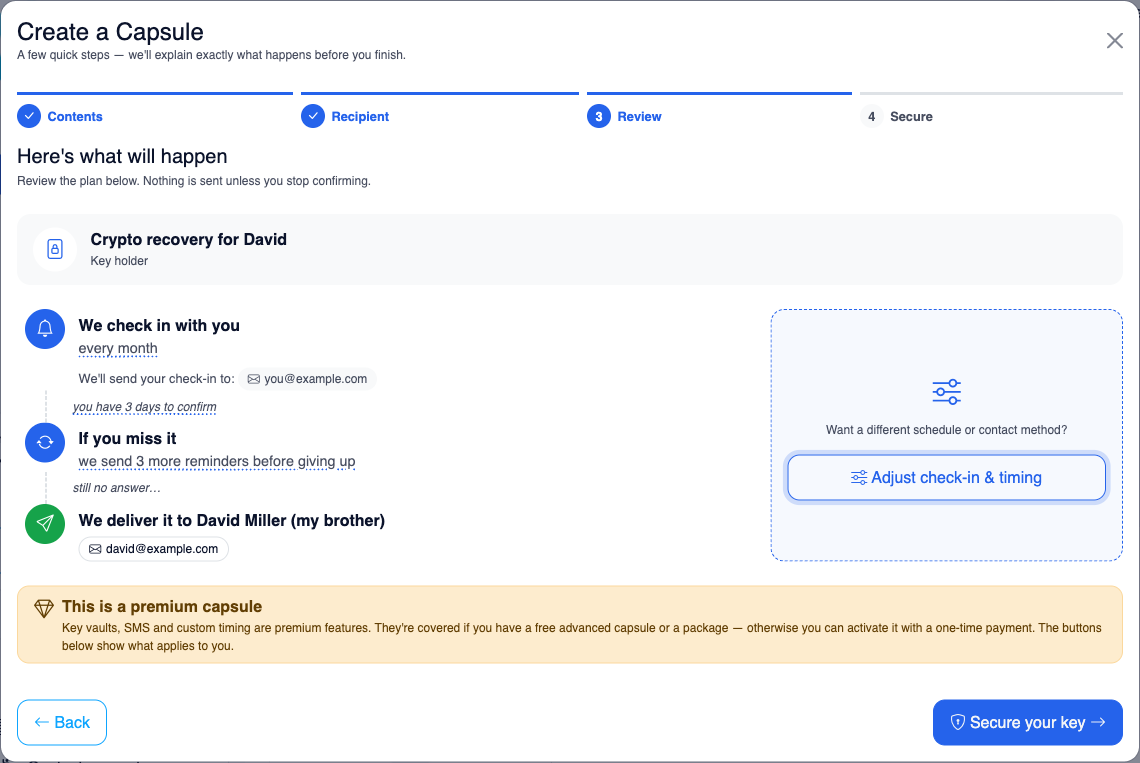
- aCadence options: daily, weekly, monthly, yearly, every two years, or a fixed calendar date.
- bGrace period is 1–3 days — the buffer after a missed check-in before anything is sent.
- cChanging any default (cadence, grace, retries) or adding SMS or WhatsApp needs a plan that includes that option (see the note on limits below).
Not sure yet? Save it as a draft and finish later — a draft never triggers and can be edited or deleted freely. We cover the save options under Edit & restrictions.
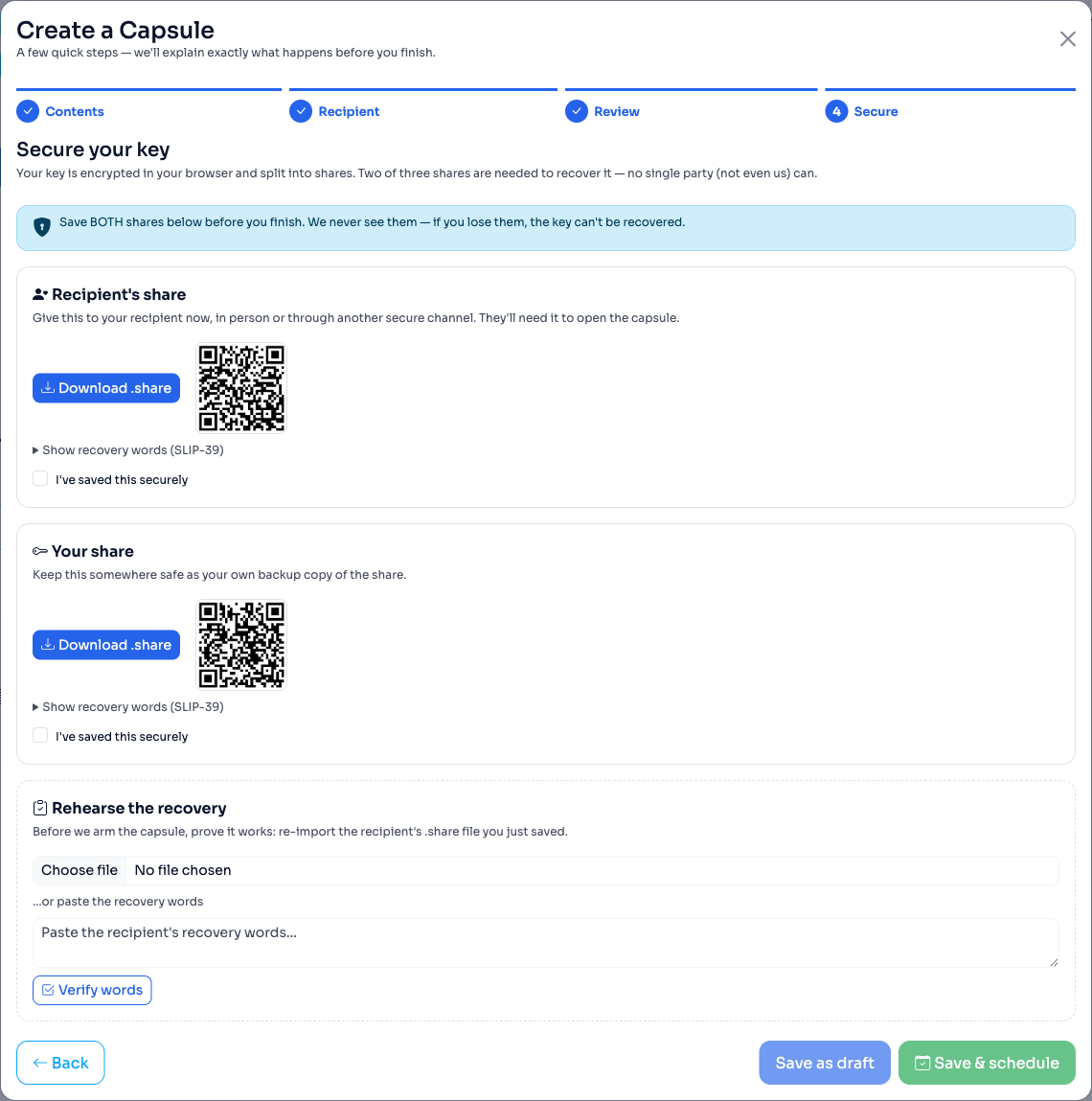
Secure — only for Key holders
This is the heart of a Key holder: you save your two key-shares and prove recovery works before the capsule is armed. It's important enough to have its own section — read the next part carefully.
The key-share exchange, explainedThe key-share exchange
When you save a Key holder, the secret never leaves your device in readable form. It's encrypted in your browser, and the key to it is split into three shares — where any two can rebuild it, but no single one reveals anything. Here's who holds each share, and exactly when to hand them out.
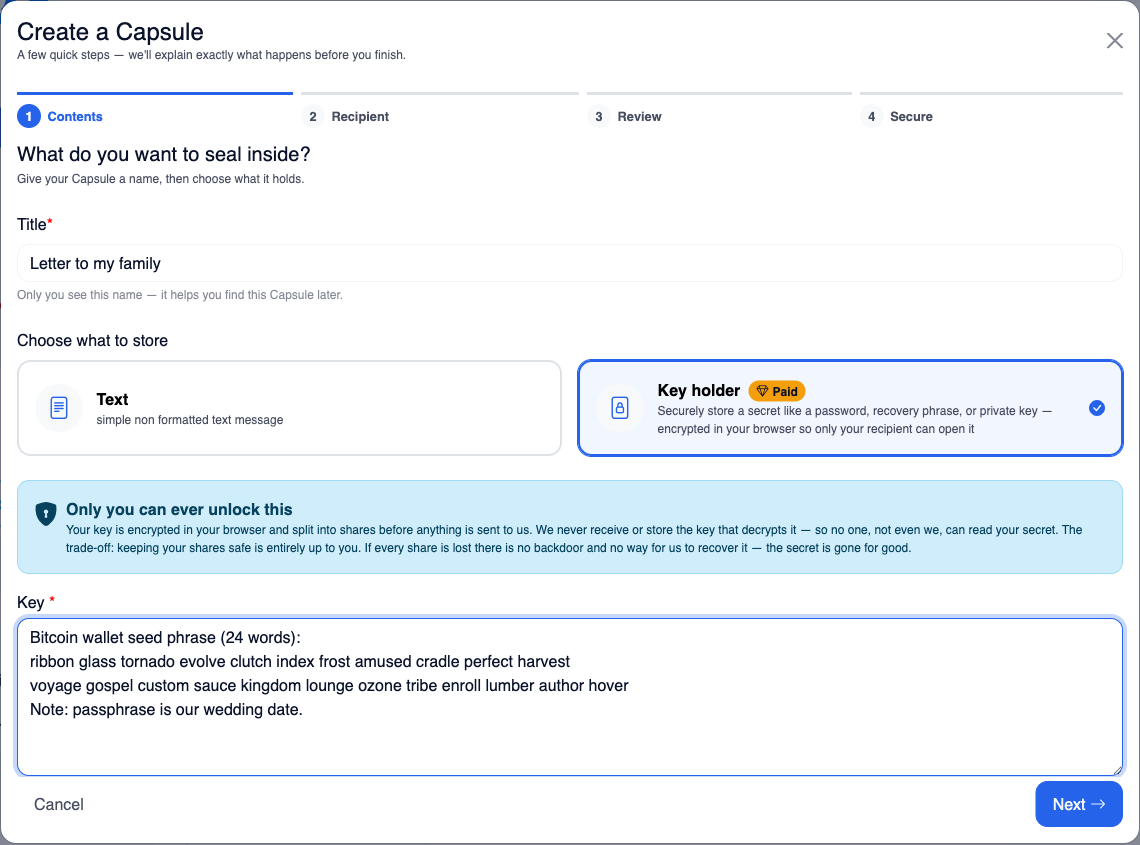
A random key encrypts your secret. That key — not the secret — is what gets split into three shares.
The three shares — who holds what
Because we only ever hold one share, we can't read your secret — not for you, not for a hacker, not for a court order. That's what "zero-knowledge" means here.
Any two shares unlock it. One never does.
This is the whole point of 2-of-3: there's a safe path to recover the secret and no single party (including us) can act alone.
When each share moves
Save your share, hand over the recipient's
Download or copy both shares. Tick "I've saved this securely" on each. Then deliver the recipient's share to them right away — in person, or via a channel you trust (an encrypted message, a sealed envelope, your password manager's sharing feature). Don't wait: if you lose it later, you can't regenerate it.
Prove the recipient's share actually works
Capsulene won't let you arm the capsule until you re-import the recipient's .share file (or paste their words) and it successfully reconstructs the key. You'll see "Recovery works — your recipient's share can open this capsule." This catches a bad copy now, not years from now.
Nothing changes — and we still can't read it
The capsule sits sealed. We hold only our one share and the encrypted blob. You keep checking in; the recipient just keeps their share safe.
Recipient + our share = the secret, in their browser
If the switch fires, the recipient gets a link. They import their share; our share is supplied automatically, and the two combine in their browser to decrypt. The plaintext is never assembled on our servers.
Worked example — Sarah leaves her crypto recovery to David
- Sarah creates a Key holder and pastes her wallet recovery phrase. It's encrypted in her browser; the key is split into three shares.
- In the Secure step she saves her own share to her password manager, and downloads the recipient's share.
- That evening she gives David the recipient's share on a USB stick and tells him to keep it with his important documents. He stores it; he can't open anything yet — he'd need a second share, which only Capsulene holds.
- Sarah rehearses the recovery in the app, sees the green success message, and arms the capsule with a monthly check-in.
- Months later Sarah stops checking in. After reminders and her grace period, Capsulene emails David a link. He opens it, imports his share, and the wallet phrase decrypts on his screen.
- If David had lost his share but Sarah still had hers, Sarah (with our share) could recover the secret and re-issue it. If Capsulene vanished entirely, Sarah and David together could still recover it from their two shares. No single loss is fatal — losing two of the three is.
Do
- Hand the recipient their share at creation, while you still have it.
- Keep your own share as a backup, separately from the recipient's.
- Use a channel the recipient still controls in years (not a work email).
- Tell them, in a Text capsule, what the share is for.
Don't
- Store your share and the recipient's share in the same place.
- Assume you can re-send the share later — you can't regenerate it.
- Skip the rehearsal, or paste the wrong file to "get past" it.
- Rely on us to recover it — we hold one share and cannot decrypt.
Protect files, not just text.
A key-holder capsule seals a short secret — but you can also encrypt whole files with the very same shares: a spreadsheet of accounts, scanned documents, a keystore, photos, a video message. It works exactly like the vault above, with one deliberate twist: the encrypted files never leave your device. Capsulene never receives them — not even the ciphertext. You keep them wherever you like, and only your capsule's shares can open them.
Seal on your device
Your browser encrypts each file with AES-256-GCM under the capsule's key. You get a .capsulene copy of every file.
Store them anywhere
A USB stick, your cloud drive, an external disk — wherever you trust. They are just encrypted blobs; no one can read them without the shares.
Decrypted with the shares
Your recipient opens them right on the delivery page with the share you gave them. You can too, any time, with your two shares.
How a file is protected
The same 2-of-3 key from the section above wraps a fresh, random key for each file — so the vault key only ever seals tiny keys, never gigabytes, and every file is cryptographically independent.
A key per file, wrapped by your vault key
Each file gets its own random 256-bit key that encrypts its contents; that key is itself sealed with your capsule's key and tucked inside the file. To open a file you rebuild the vault key from two shares, unwrap the file's key, then decrypt — all in the browser.
No size cap, nothing uploaded
Because files stay on your device, the 32 KiB limit on capsule text doesn't apply — encrypt files as large as your browser can handle. Capsulene never receives them — not the plaintext, not the ciphertext — so they are never stored on our servers.
Where to do it
Right after you save & arm it
Arm a key-holder capsule as you save it (Save & schedule) and the next screen offers an optional file-sealing box — the capsule's key is still in your browser at that moment. Pick files there and each is encrypted, then downloaded as a .capsulene copy. A capsule saved as a draft skips this screen. Store those copies; delete the originals only once you've confirmed they open.
Later, from the Utilities page
Adding more files to an existing capsule needs an active package. With one, open Utilities in the side menu, provide that capsule's two .share files, and drop in the new files to seal. Decrypting needs no package and never will: give the page your shares (or the envelope plus one share) and the .capsulene files, and it hands back the originals — entirely offline.
Your recipient, at delivery
When a capsule is released, the recipient's delivery page unlocks the secret with their share — and, right below it, offers to decrypt any .capsulene files you left them. They never need an account or any technical steps.
Works even if Capsulene disappears. The Utilities page offers a downloadable offline decryptor — a single self-contained HTML file that opens your .capsulene files and shares with no internet and no Capsulene. Save it next to your encrypted files. Its format is documented and it's built from the same code as the app, so your files stay openable for the long haul. Re-download it after you create new capsules so it can read the newest files.
A capsule is a sealed box. Its key is fixed once created, so to add files later you seal them for the same capsule (step 2 above, with an active package) — or make a new capsule and hand the new share to your recipient. And remember the trade-off from the section above: deleting a key-holder capsule destroys our share for good, after which its files can only be opened by combining your and your recipient's shares, and can never be delivered again. Keep your encrypted files, your shares, and the offline decryptor in at least two safe places, and test-decrypt them once a year.
Choosing a check-in rhythm
There's no single right cadence — match it to how often you'd realistically notice a reminder, and how time-sensitive the contents are. A few starting points:
| If your capsule is… | Check-in | Grace | Why |
|---|---|---|---|
| A "just in case" family letter | Yearly | 3 days | Low urgency; you won't resent a once-a-year nudge. |
| Crypto / account recovery | Monthly | 3 days | Balances responsiveness with not being nagged. |
| Business continuity / handover | Weekly | 1–2 days | Time-critical — a successor needs access quickly. |
| A dated message (birthday, milestone) | Specific date | — | Fires on the date you set rather than on silence. |
One I'm alive click resets the clock for all your active capsules at once — so you can run several on different cadences and still manage them with a single tap. Add a second recipient channel (SMS or WhatsApp) for anything you can't afford to have missed.
Edit & restrictions
Open any capsule from the dashboard to edit it. What you can change depends on its type and whether it's currently armed — a few rules exist specifically to keep your secrets recoverable.
Text capsule
Everything is editable, any time: the message, recipient details, sender name and greeting, channels, cadence, grace, and retries. Changes to an armed capsule take effect immediately.
Key holder
Title, recipient, schedule and channels are all editable. The one thing that's locked is the encrypted secret itself — because it was split into shares at creation, changing it would invalidate the shares your recipient already holds.
To change a Key holder's secret, delete the capsule and create a new one — then hand the new recipient share over again. There's no way to re-encrypt in place without breaking the shares already distributed.
Saving, unscheduling & deleting
- Draft → Save as draft. Stores changes without arming. Drafts never trigger.
- Arm it → Save & schedule. Starts the check-in clock, using your free slot or a package allowance.
- Editing an active capsule → Save & keep scheduled. Applies your edits and keeps the clock running.
- Pause it → Unschedule. Stops the clock and turns it back into a draft (its slot is freed; re-arm it any time your free slot or package has room).
- Delete works on drafts. An active capsule must be unscheduled first — Capsulene reminds you instead of letting the clock vanish silently.
Reading the dashboard — capsule states
Every card shows where the capsule is in its life. Here's the full set:
Needs activatingSaved, but not covered yet — schedule it when your free slot or a package allowance has room.
Ready, pausedCovered but the clock isn't running. Open it and Save & schedule.
Armed & runningShows your next check-in date and a countdown.
Awaiting youA check-in is due — click I'm alive to reset it.
Switch firedYou didn't confirm in time; release has begun.
SentThe delivery link is on its way to your recipient.
ReceivedYour recipient opened the capsule.
A note on limits. Your plan caps how many capsules you can keep active at once, per type — text and key. The free tier covers 1 text capsule with the default schedule and e-mail delivery. Custom timing, SMS, WhatsApp, and login-required check-ins are plan features. Unscheduling a capsule frees its slot for another.
Three capsules worth creating today
If you're not sure where to start, copy one of these.
Family letter
- Type
- Text
- To
- Partner / child, email
- Check-in
- Yearly · 3-day grace
- Holds
- Where things are, who to call, a personal note
Crypto recovery
- Type
- Key holder
- To
- A trusted heir, email + SMS
- Check-in
- Monthly · 3-day grace
- Holds
- Seed phrase or wallet recovery steps
Business handover
- Type
- Key holder + a Text runbook
- To
- Co-founder / deputy
- Check-in
- Weekly · 1–2-day grace
- Holds
- Admin access + "what to do first"
Protect the account behind your capsules
Capsule contents are sealed in your browser — but the account that schedules, edits and unschedules them deserves a second lock too. Two-factor authentication adds a 6-digit code from your authenticator app (Google Authenticator, Authy, 1Password, …) on top of the e-mail sign-in.
Prefer skipping codes altogether? Add a passkey under Account → Security and sign in with your device's screen lock — fingerprint, face or PIN. Passkeys are phishing-resistant and strictly an additional sign-in method: e-mail codes and Google sign-in keep working. You can add up to five (say, your laptop and your phone) and remove any of them from the same list — for instance when you replace a device. With two-factor authentication enabled, your authenticator code still applies after a passkey sign-in.
- Enable it. Go to Account → Security and press Enable.
- Scan the QR code with your authenticator app — or type the secret in manually if you can't scan.
- Prove it and pick your mode. Enter the first code your app shows, then choose every login (strictest) or once a day (a code at most every 24 hours, one verification covers all your devices).
- Save your recovery codes. You get eight single-use codes, shown exactly once — download or copy them somewhere safe. Each one can stand in for an authenticator code at sign-in.
Signing in afterwards: e-mail code first, then your authenticator code — one field, which also accepts a recovery code.
Lost your phone? Sign in with a recovery code, then go to Account → Security → Turn off (a recovery code works there too) and re-enable two-factor with your new phone. Re-enabling issues a fresh set of recovery codes.
You're ready. Create your first capsule.
Start with one thing that would be hard for someone to handle without you. You can save it as a draft and arm it whenever you're sure.
Open CapsuleneQuestions about security first? Read the zero-knowledge details or the FAQ.